 SynthMaker
Inside a face
In the Patch, a face is a tree of views you open level by level, as you open a module of your own. The breadcrumb always says where you are.
1One box for the face
Open Tone (Open on its card, or double-click it in the Patch). Beside its modules is one box for its face, saying what it holds.
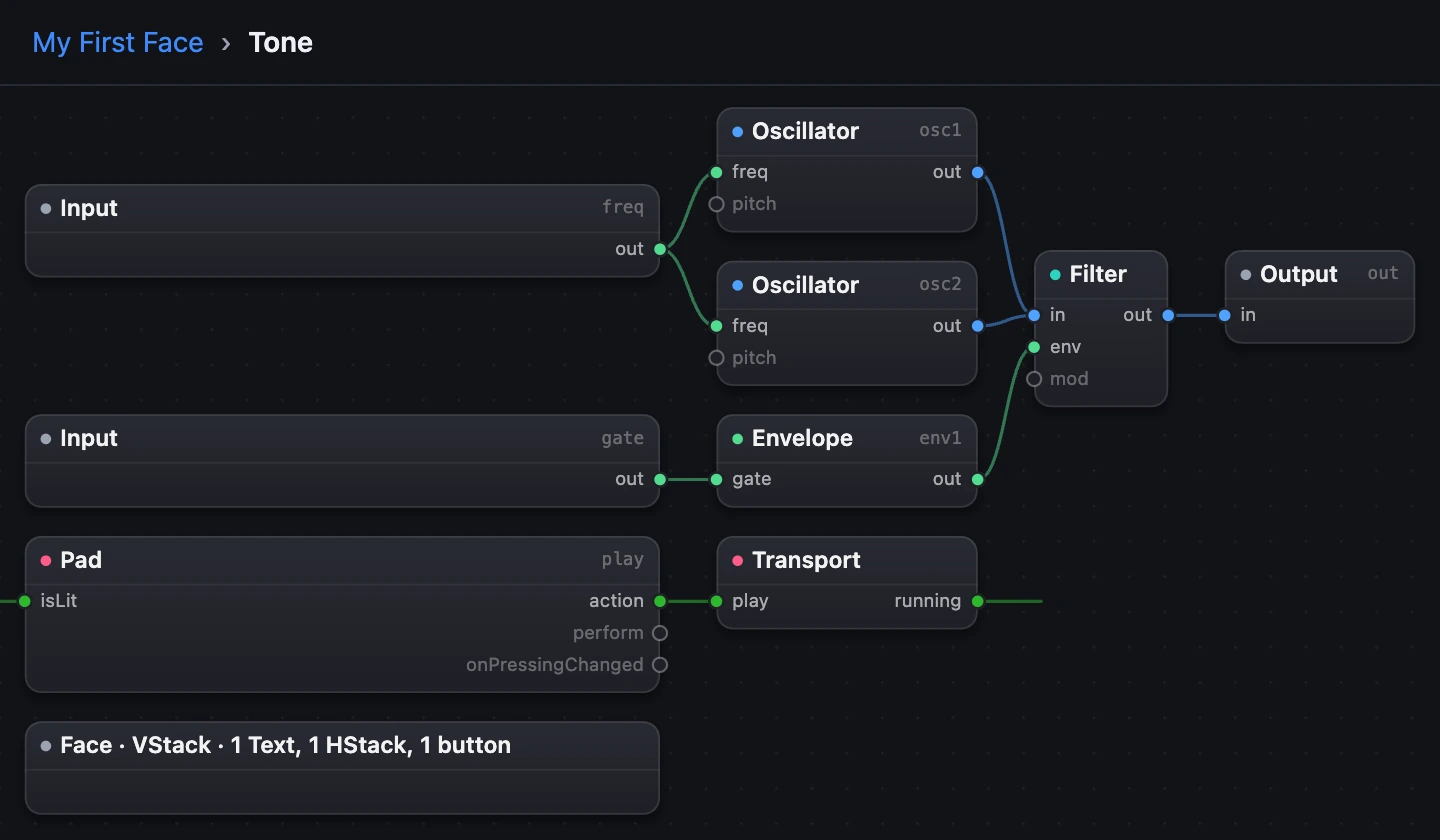
- The face, as one box.
2Open a stack, one level down
- Double-click the face's box: you're inside the
VStack. - Double-click HStack · 2 knobs to go inside the row.
- Choose a name in the breadcrumb to go back up.
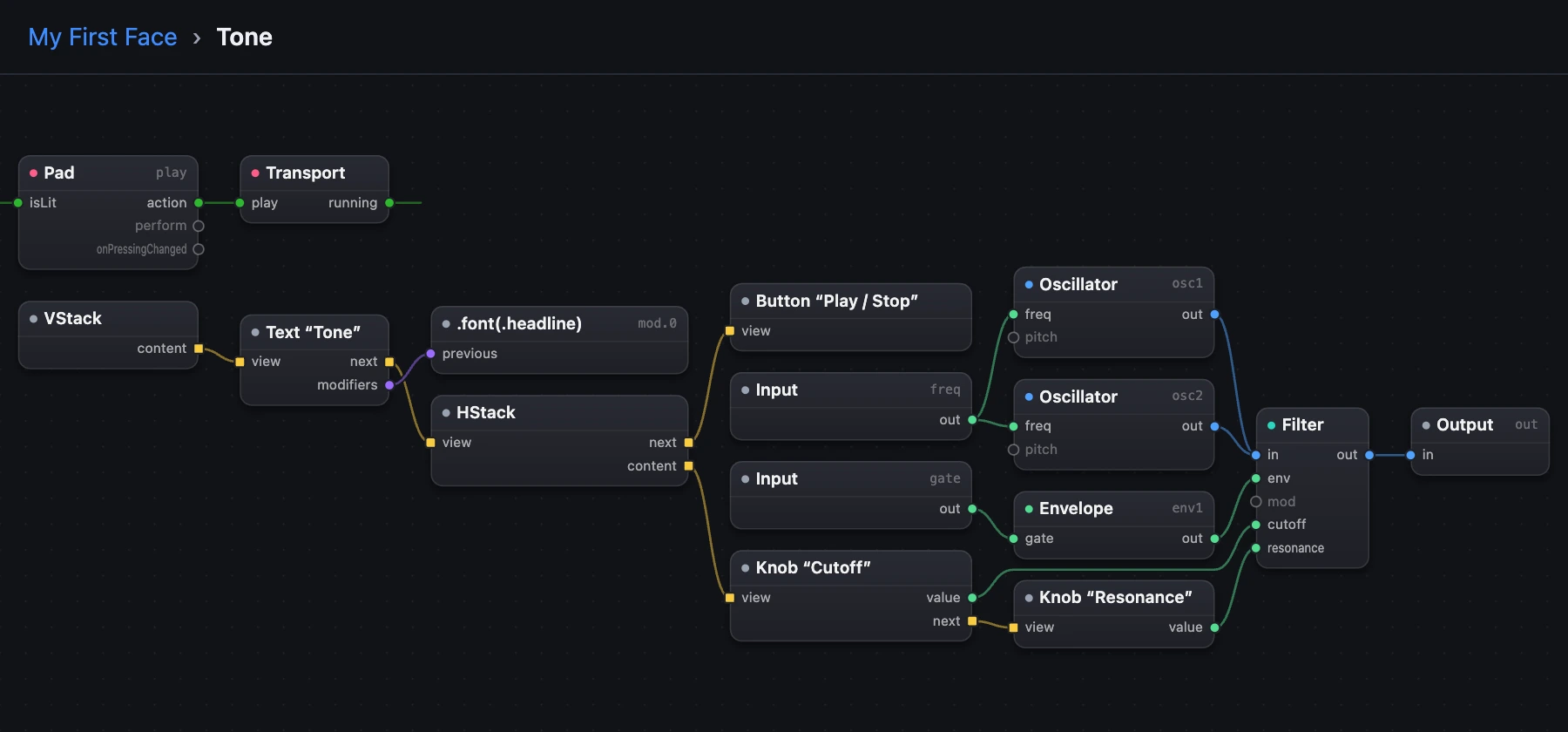
Inside a stack, a Content box starts its views: its yellow content goes to the first, and each view's next to the one after, so you read the order along the chain, as SwiftUI reads its lines.
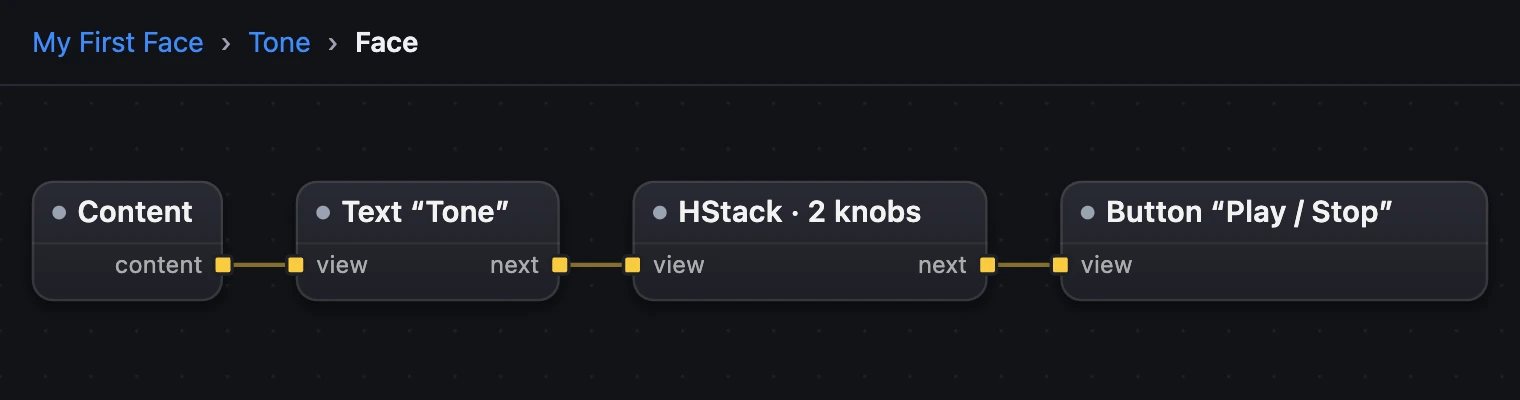
- Content starts the stack.
- A stack inside, summed up.
3Knobs are wired to what they turn
Inside the row, each Knob's value is a green wire to the setting it turns, on the Filter. A binding is a wire you can see, never a hidden option.
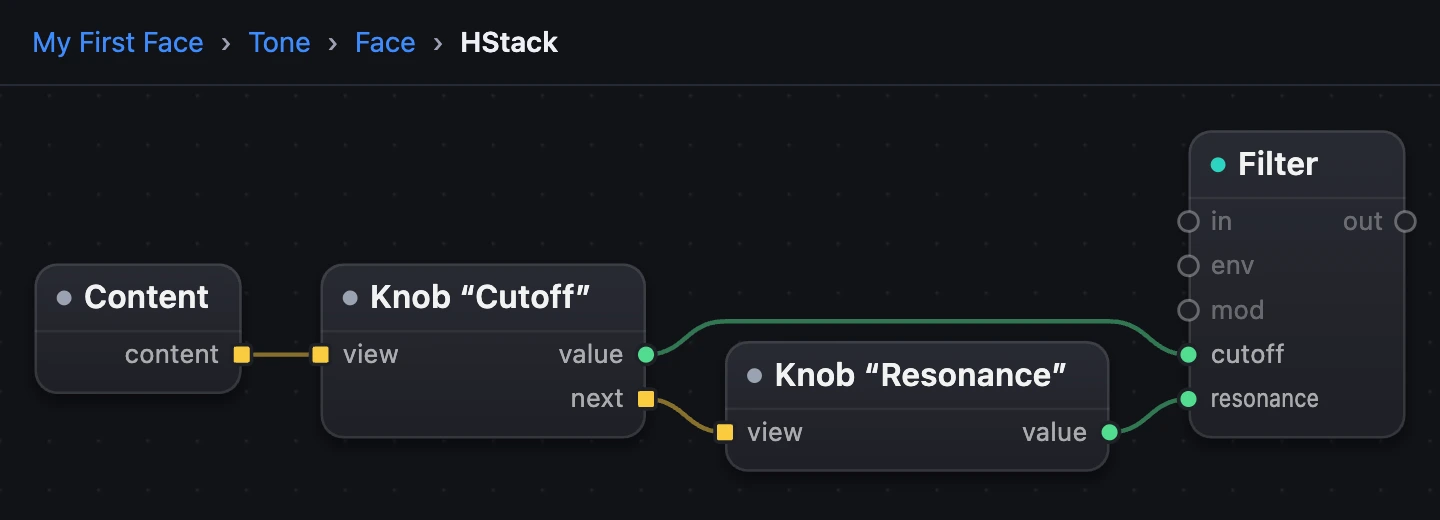
- A Knob.
- Its binding, a wire.
- The setting it turns.
4Nested or Flat
The Patch's bar has Nested and Flat while a face is in view. Nested, the default, is where you work, a level at a time. Flat shows every view and every modifier at once, to read: it can't be edited.
5The face editor
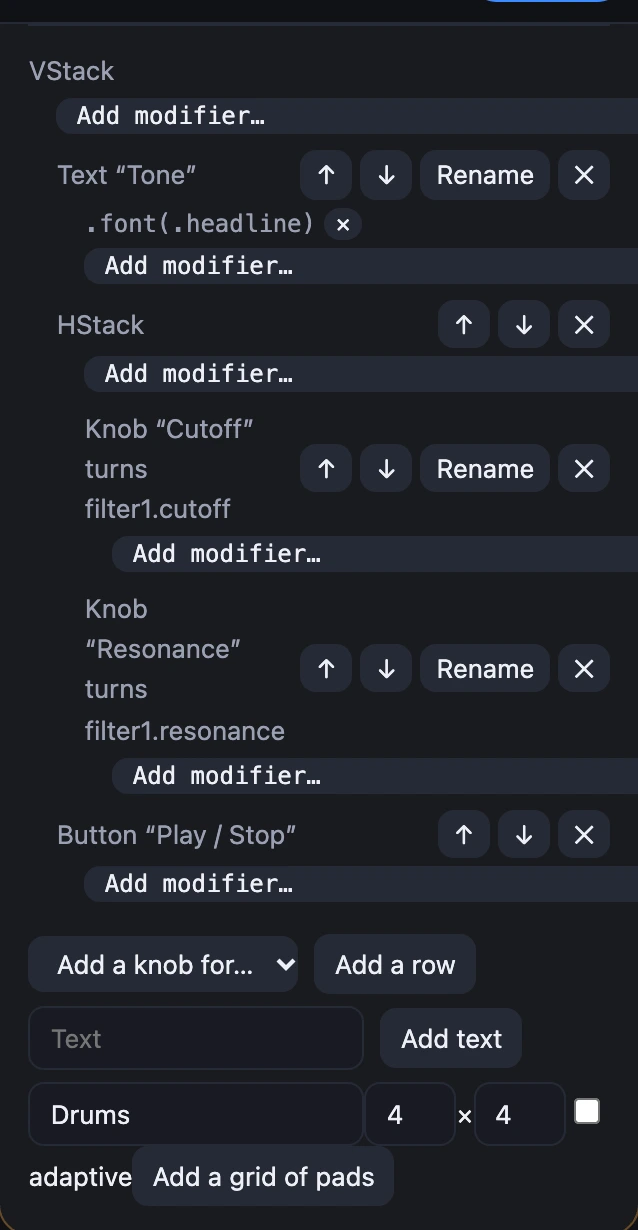
Edit face on the module's card opens its views as an outline, each line as the code names it. Every line has ↑ and ↓ to move it, Rename for words and knobs, ✕ to delete it, and Add modifier…. Below the outline are Add a knob for…, Add a row, Add text and Add a grid of pads.
A new row and new text go at the end of the face; a new knob goes into the stack added last. Done closes the editor.
Try it
- Open My First Face, then Tone, then its face, then the row.
- Choose Tone in the breadcrumb to come back up.
- Switch to Flat to see it all, then back to Nested.
Remember
- A face is a tree: double-click a stack, or any view, to go one level down; the breadcrumb goes back.
- A stack starts at Content; yellow
nextwires give the order. - Nested is for working, Flat for reading it all at once.